
How to hide sensitive data before sharing your screen
Sharing your screen is a small leap of faith.
One stray notification, one tab you forgot, and a client’s email or your bank balance is suddenly on display for the whole call. I’ve done it. Once was enough.
The problem
Your screen holds more private stuff than you think.
Emails. Account balances. Customer names in a dashboard. API keys in a terminal. A half-written DM that just slid in. On a normal day, fine. The second you share your screen or hit record, all of it is fair game.
And you can’t take it back. Once it’s on the call or baked into the video, it’s out there.
Why the usual fixes fall short
So what do most people do? They scramble.
- Close every tab and app first. You’ll miss one.
- Crop or edit the recording later. Slow, and no help on a live call.
- Just hope nobody notices. Bold.
They all rely on you remembering, under pressure, in real time. That’s exactly when you forget.
The fast way
Here’s what I do instead: hide the sensitive stuff right on the page, before I share.
Click to Censor is a Chrome extension that covers anything on any webpage in a couple of clicks.
- Hover over the thing you want gone. It highlights.
- Click it. That’s it, censored.
- Pick how it hides: Blur, Blackout, or Hide it completely.
Don’t take my word for it. Hover over anything in the dashboard below and click to blur it. Click again to bring it back.
- Subscription Service -$14.99
- Client Wire Transfer +$2,500.00
- Tech Hardware Store -$1,249.99
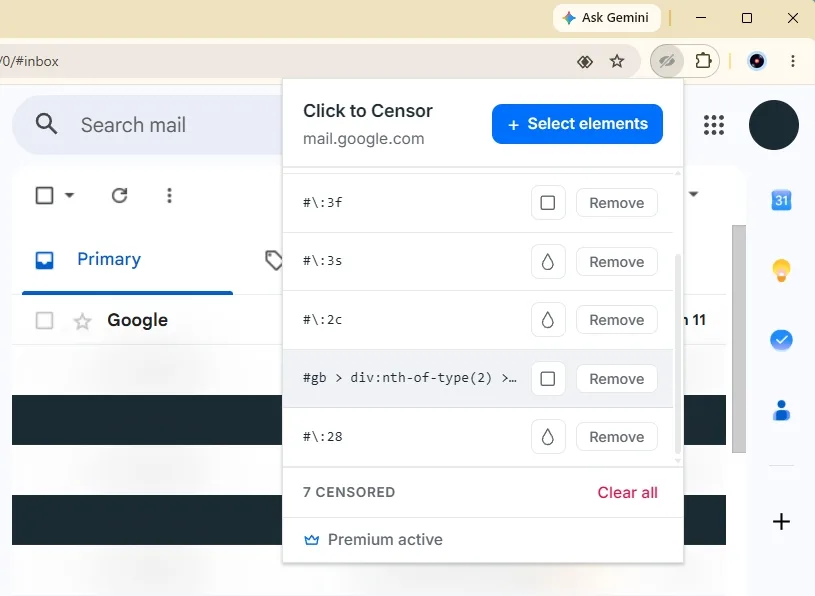
That’s the whole interaction. Here’s what it looks like on a real page:
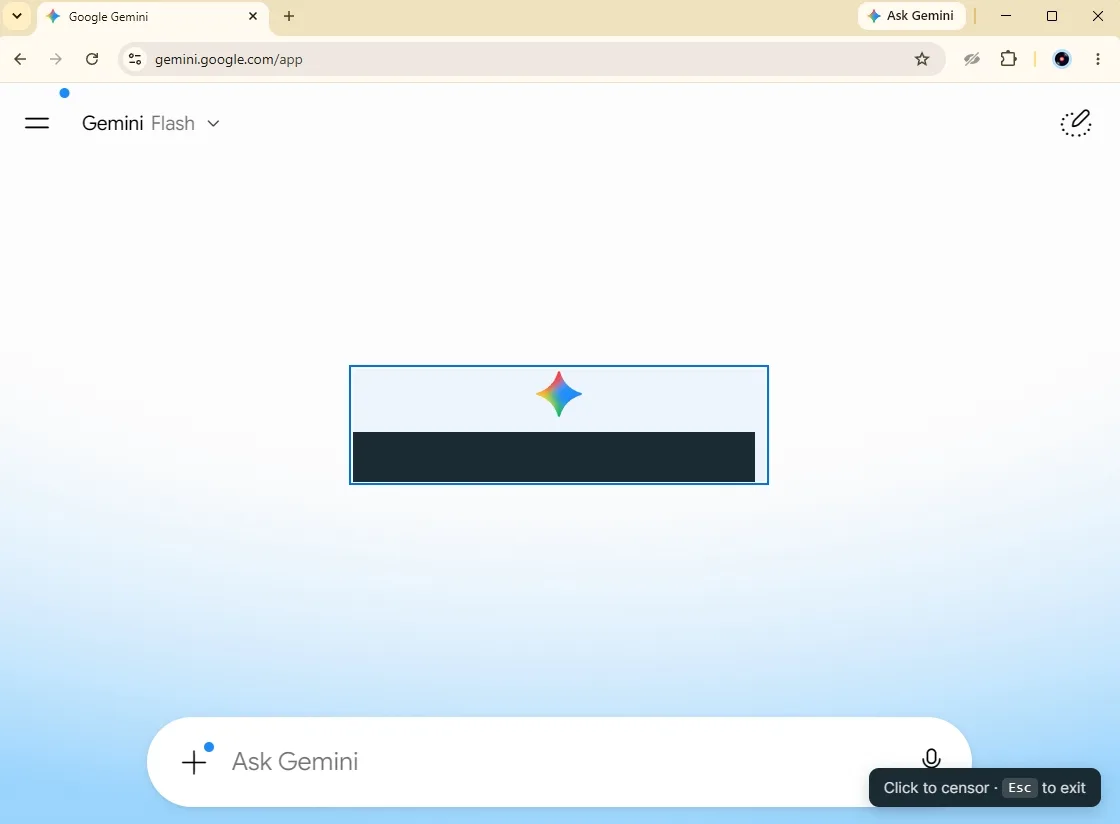
Hover and the element lights up, so you know exactly what you’re about to hide before you commit.
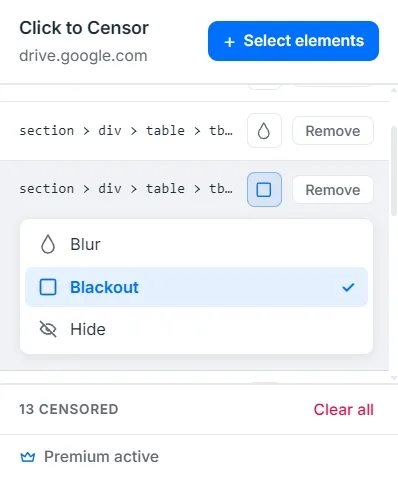
Three ways to hide it: blur softens it, blackout drops a solid bar over it, hide removes it from the page entirely.
Works on anything: text, images, tables, whole sections. Need to peek at something mid-call? Click-to-reveal un-hides it for a moment, then it goes back.
And it sticks. Censors are saved per site, so a page reload doesn’t undo your work. Set it once before a recurring call and forget about it.
Why it’s safe
The whole thing runs 100% locally. Nothing on the page ever leaves your browser. No account, no upload, no server. It’s just hiding pixels on your own screen.
Blur is free. Blackout, Hide, and click-to-reveal come with the premium upgrade: a one-time $9.99, no subscription.
Takeaway
Screen sharing shouldn’t be a gamble. Hide the private stuff first, then share with a clear head.
That’s the whole trick. If you share your screen often, it’s worth two minutes to set up: Click to Censor.