
How to Hide Your Email and Phone Number on a Video Call

You share your screen for two seconds to show one thing.
And your email address is sitting in the corner of the tab. Your phone number is on the account page you forgot was open. Somebody on the call could screenshot both before you tab away.
I’ve done it. Shared a settings page, realized later my personal number was right there for the whole meeting.
Where your email and phone actually hide
You’d be surprised how many places leak these two.
Your inbox. Gmail or Outlook shows your address in the top corner, and again on every message you’ve sent.
Account and profile pages. The tidy little block with your name, email, phone, and address. Great for you, great for everyone watching.
Email signatures. Open a compose window to reference something and your full contact card is right there at the bottom.
Autofill and form fields. A checkout or a sign-up form half-filled with your real details.
Anywhere you’re logged in. Half the apps you use greet you with “signed in as [email protected]” somewhere on screen.
Any one of these is a screenshot away from a stranger’s notes.
Why “just be careful” doesn’t work
The usual advice is to close everything sensitive first. Sure.
But you’ll miss one. You always do. The email in the corner is so familiar you stopped seeing it months ago.
You could blur your camera background, but that does nothing for what’s on the shared screen. You could crop the window, except the private bit is usually right next to the thing you came to show.
And covering it with a sticky note or another window looks unprofessional and slips the moment you scroll.
The real problem: your email and phone are on the page. So the fix has to be on the page too.
Hide them in one click
That’s exactly what Click to Censor does. It’s a Chrome extension that hides any element on a page before you share.
You hover over the thing you want gone. You click. It’s covered.
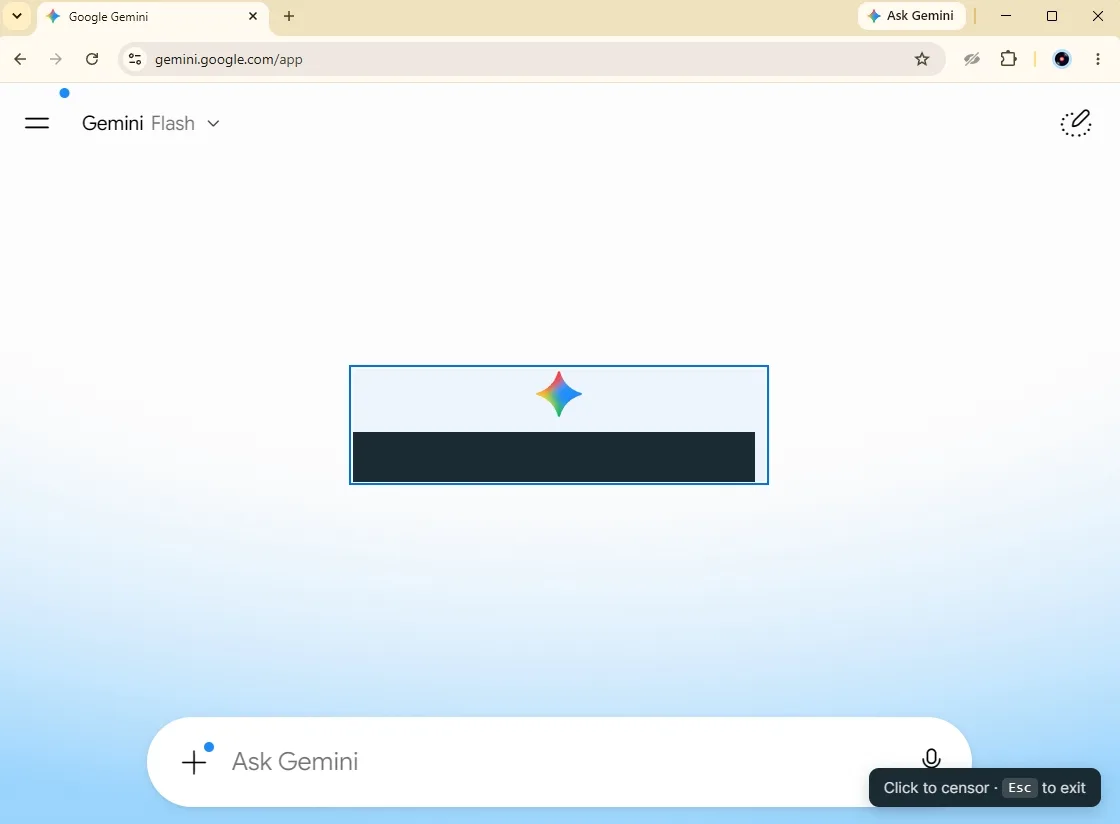
The element lights up on hover, so you see exactly what you’re about to hide before you commit. Then choose how it goes: blur softens it, blackout drops a solid bar over it, or hide removes it from the page entirely.
Take your account page. Everything laid out in one tidy block: name, email, phone, address.
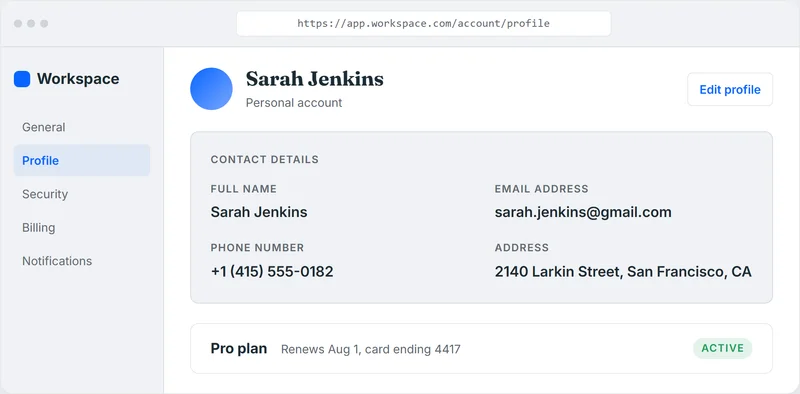
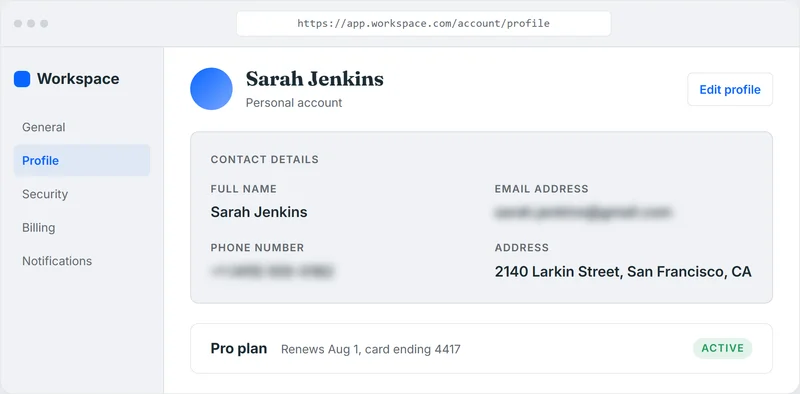
Click your email, click your phone number, and they’re gone. The name and address you don’t mind showing stay exactly as they were.
And it sticks. Censors are saved per site, so reloading doesn’t undo them. Cover your email once on your account page and it’s already hidden next time you open it before a call.
Try it on the demo below. Hover over any value, click to blur it, click again to bring it back.

- Subscription Service -$14.99
- Client Wire Transfer +$2,500.00
- Tech Hardware Store -$1,249.99
That’s the whole thing. Hover, click, covered.
Why it’s safe on a work call
Click to Censor runs 100% locally in your browser. Your email and phone never get uploaded, there’s no account, no server sees the page. It’s just hiding pixels on your own screen.
Blur is free. Blackout, Hide, and click-to-reveal come with a one-time $9.99 upgrade, no subscription.
What it can’t reach (handle these first)
Quick honesty: it works on the web page. A few leaks live outside the page, so fix those with a habit before you share:
- Notifications. A text preview with your number can pop mid-call. Turn on Do Not Disturb.
- Browser autofill dropdowns. Those render from the browser, not the page, so don’t click into an email field on the call.
- Your email in a native app. Outlook or Mail as a desktop app isn’t a web page. Close it or hide the window.
Takeaway
Before your next share: Do Not Disturb on, native mail closed.
Then for your email and phone number sitting on the actual page, it’s one click each. Cover them, share with a clear head, and stop scanning every corner for what you forgot.
Set it up once: Click to Censor.