
7 Things You Accidentally Expose on Screen-Share Calls

You hit “Share screen” and the page you’re on is suddenly in front of everyone.
Most of it is fine. But web pages are packed with private stuff you stopped noticing months ago. And the second you share, it’s all on display.
Here are seven things that live right on the page, the ones that catch people out most.
1. Account balances and financial dashboards
You pull up your analytics to show the team, and your Stripe revenue is sitting one panel over. Or your bank balance. Or this month’s ad spend.
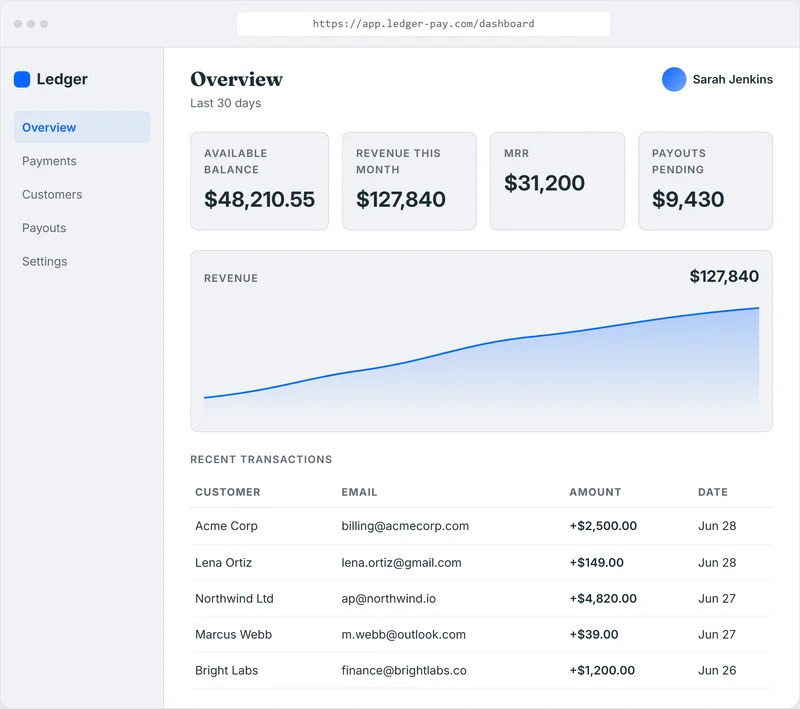
Numbers you really don’t want a client, a candidate, or a webinar crowd doing math on.
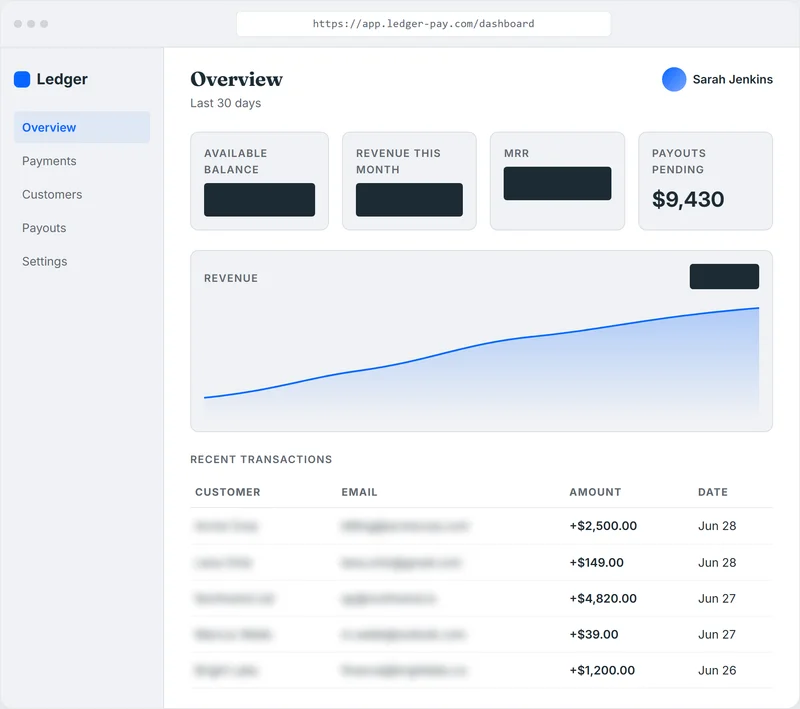
The fix? Hover, click, done. Balances blacked out, customer names blurred, before you ever hit share.
2. Customer records in a CRM or admin panel
Real names, emails, account IDs of actual people.
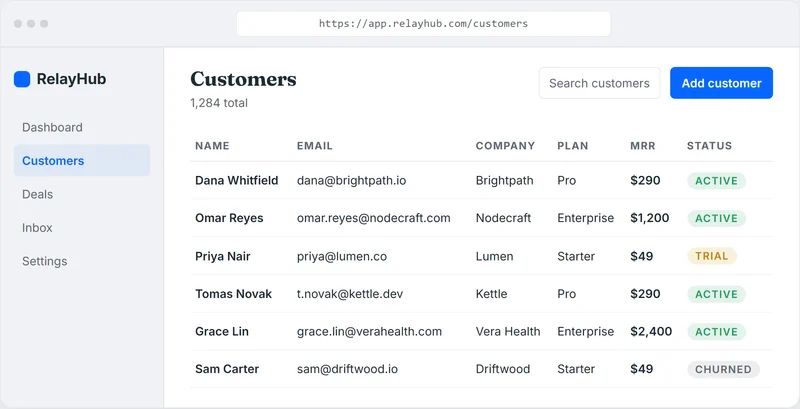
Demoing your product on live customer data is one of the easiest ways to leak PII without meaning to. That’s not just awkward, it can be a compliance problem.
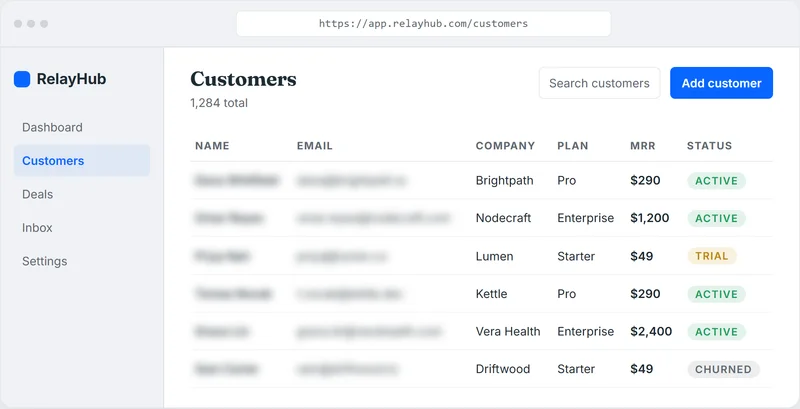
One pass and the people are anonymous: names and emails blurred, the records you’re actually demoing left alone.
3. Your webmail inbox
Gmail or Outlook open in a tab is a wall of private context.
Sender names. Subject lines. That one thread you’d rather nobody read over your shoulder. All sitting there while you “just quickly check something.”
4. API keys and tokens on a settings page
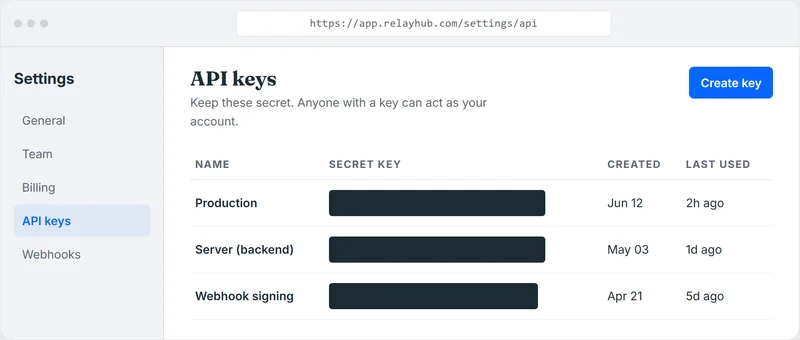
You open a cloud console or a settings page to show a config, and a live API key is right there in plain text.
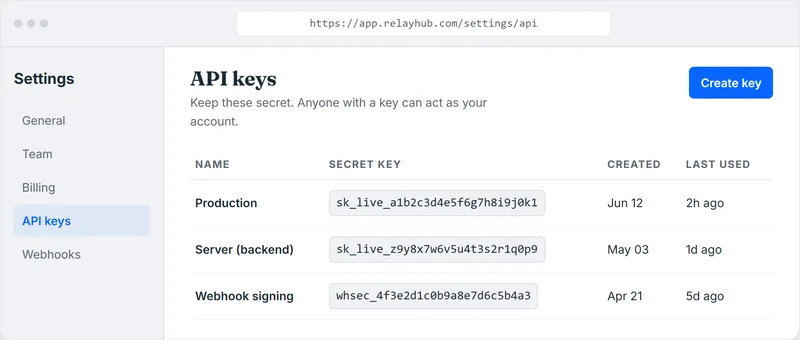
One screenshot from someone on the call and that key is out. For good.
Black the keys out first and the page is safe to show.
5. Personal details on account or profile pages
Your address. Your phone number. The plan you’re on, the last four of a card.
Account and profile pages love to lay all of this out in one tidy block. Great for you, great for everyone watching too.
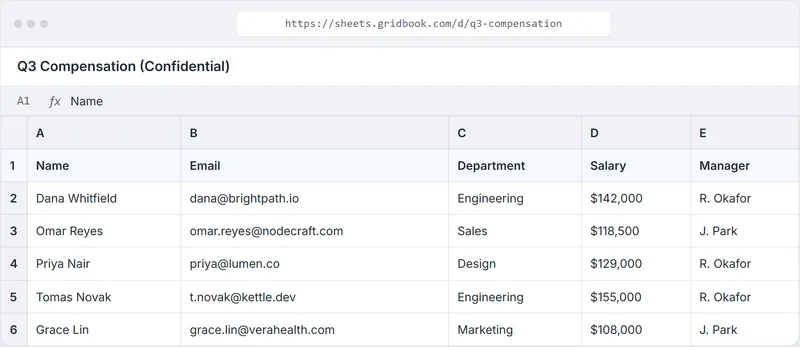
6. A shared doc or spreadsheet
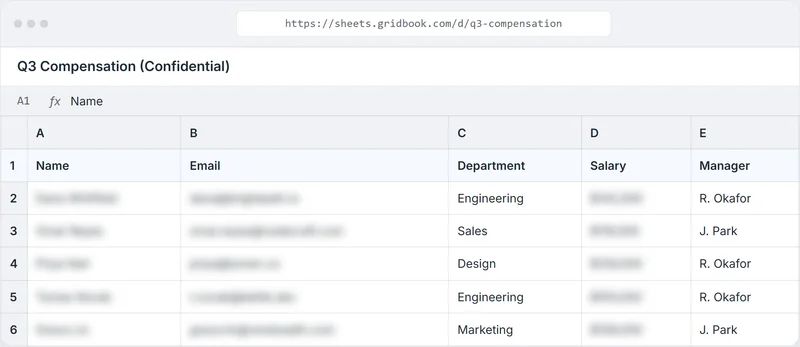
You open a Google Doc or Sheet to reference one line, and the whole thing is other people’s info: salaries, emails, notes that were never meant for this audience.
Blur the columns that matter and you can still show the one cell you came for.
7. Whatever’s in the web app you’re demoing
Form fields half-filled with real data. A test record that isn’t actually a test. Comments, names, internal notes.
When you’re live in an app, the sensitive bits are mixed right in with the thing you’re trying to show.
The one-click fix
Here’s the thing all seven have in common: they’re on the page. And anything on a page, you can hide.
That’s what Click to Censor does. You hover over an element, you click, it’s gone. Blur it, black it out, or hide it completely.
It remembers what you censored per site, so the next time you open that dashboard, the sensitive parts are already covered.
It all runs locally in your browser. Nothing gets uploaded, no account needed. Try it on the mock dashboard below: hover, click, watch it disappear.

- Subscription Service -$14.99
- Client Wire Transfer +$2,500.00
- Tech Hardware Store -$1,249.99
What it can’t catch (handle these first)
Quick honesty: Click to Censor works on the web page. So a few things are out of its reach, and you fix those with a habit before you share:
- Notifications. Flip on Do Not Disturb (or Focus, or Quiet Hours).
- Your tab strip and bookmarks bar. Close the spare tabs, hide the bookmarks bar.
- Browser autofill dropdowns. Those pop from the browser, not the page.
- Files in your editor or terminal. A
.envopen in your code editor isn’t a web page at all, so close it.
Takeaway
Before you share: Do Not Disturb on, spare tabs and bookmarks tidied, editor closed.
Then for everything sitting on the actual page, the balances, the customer data, the keys, it’s one click each. That’s how I stopped sweating screen shares. Click to Censor does the hiding.