
Share Your Screen on Zoom Without Leaking Private Info

“Can everyone see my screen?”
You ask it every call. And the honest answer is: probably more than you meant to show.
A Zoom share feels casual until a Slack DM slides in, or you tab to the wrong window, or a client clocks the email address in your inbox. I’ve sweated all three.
The two ways Zoom shares leak
There are really only two.
What Zoom shows. The whole desktop instead of one window. A notification that pops mid-share. The taskbar full of app icons you’d rather not explain.
What’s on the page. Even with the right window shared, the page itself is full of private stuff: balances, customer names, your open inbox, an API key on a settings screen.
Zoom can fix the first one. It can’t touch the second. So you handle them separately.
Lock down what Zoom shares
This part is all in Zoom’s own controls. Two minutes, no extensions.
Share one window, not your whole screen. When you click Share, Zoom gives you a grid of open windows. Pick the single app you actually need. Everything else, your desktop, your other tabs, your inbox, stays invisible. This one habit prevents most leaks on its own.
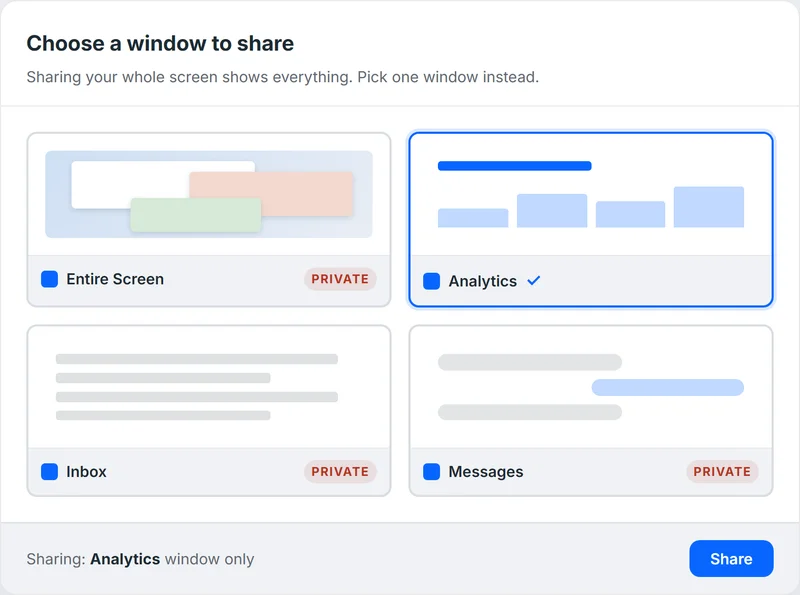
See how “Entire Screen” hands over everything at once? Sharing a single window keeps the rest of your desktop private by default.
Silence notifications while sharing. Zoom has a setting for this (Settings > Share Screen > “Silence system notifications when sharing desktop”). Turn it on. Or just flip your OS into Do Not Disturb / Focus before the call. No more DMs surfacing on the projector.
Watch the green border. When you share, Zoom draws a green outline around exactly what’s being broadcast. Glance at it before you start talking. If it’s hugging your whole screen, stop and re-share just the window.
Tidy the window you are sharing. Close the spare tabs in that browser. Hide the bookmarks bar. Quit the apps you don’t need.
That covers the frame. But the content inside the frame is still wide open.
Now hide what’s on the page
Here’s the part people miss.
You did everything right: shared one browser window, silenced notifications. And that window is your analytics dashboard with this month’s revenue sitting in the corner. Or a CRM full of real customer emails. Sharing the right window doesn’t make the data on it private.
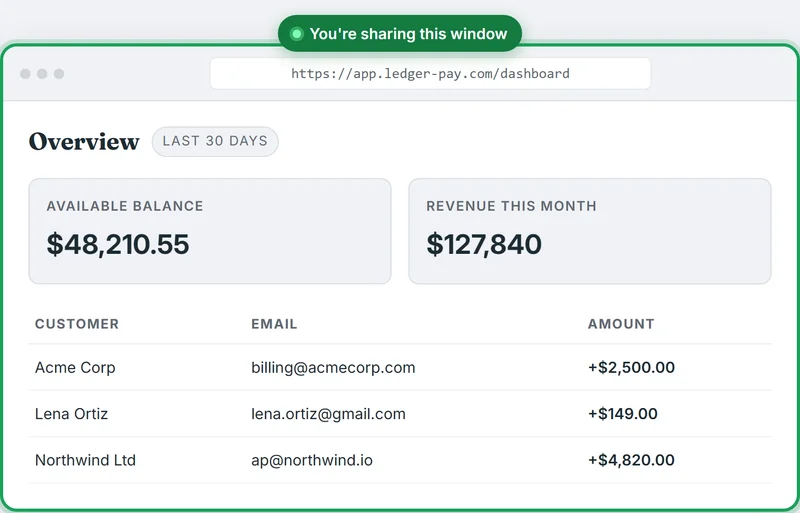
Right window shared, green border and all. And the balance, the revenue, every customer email are still on display for the call.
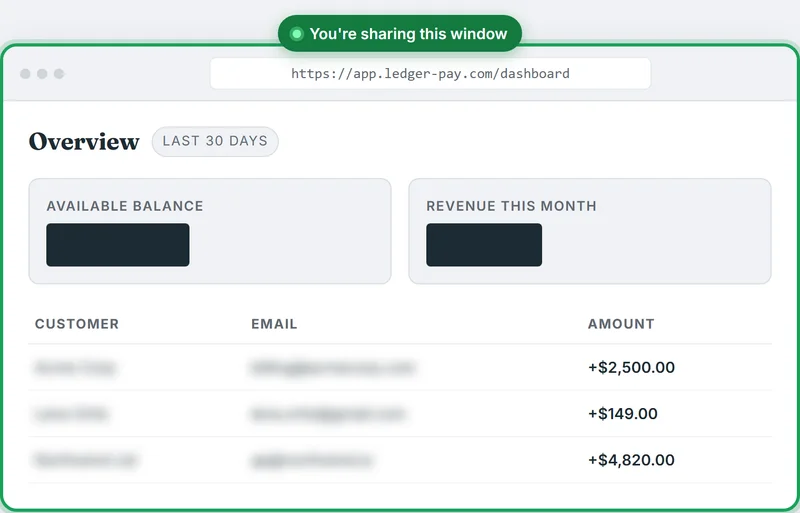
One pass and the same shared window is safe: balances blacked out, names and emails blurred, the chart you actually came to show left alone.
That’s the gap Click to Censor fills. It’s a Chrome extension that hides any element on a page before you share.
You hover over the thing you want gone. You click. It’s covered.
Try it on the dashboard below. Hover over any figure, click to blur it, click again to bring it back.

- Subscription Service -$14.99
- Client Wire Transfer +$2,500.00
- Tech Hardware Store -$1,249.99
That’s the whole interaction. Here’s what it looks like on a real page:
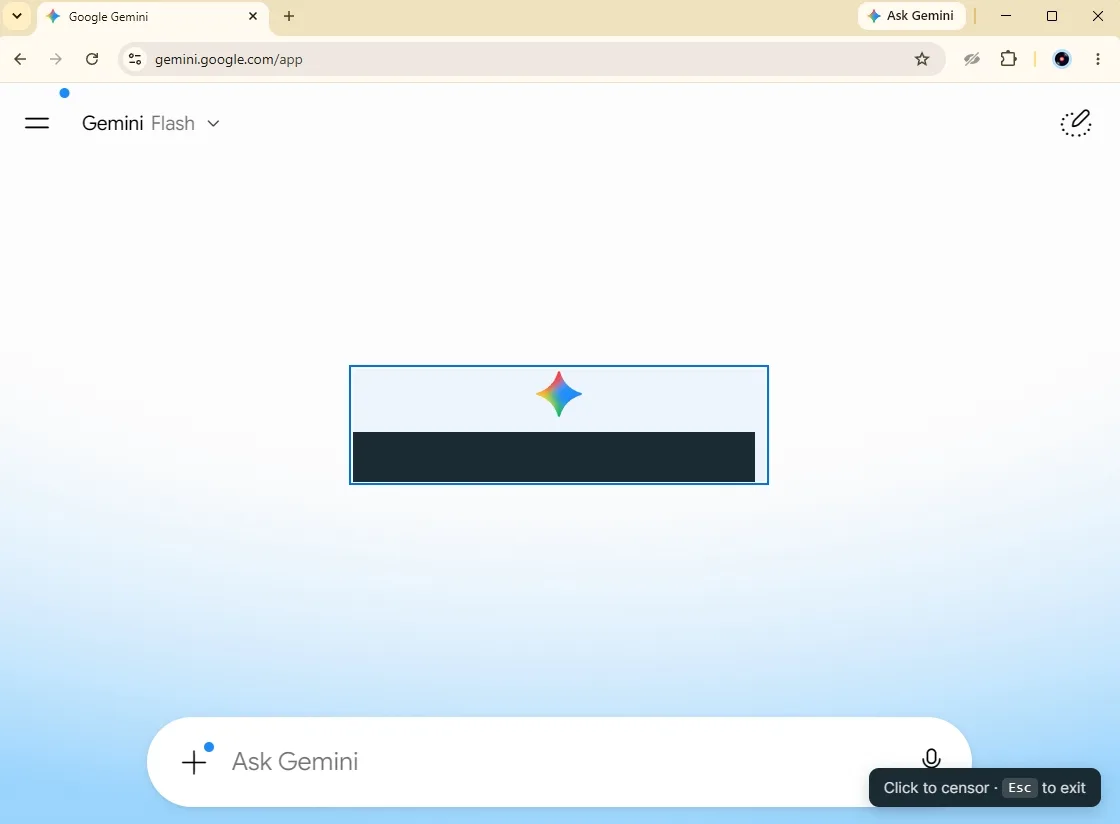
The element lights up on hover, so you know exactly what you’re about to hide before you commit. Then pick how it goes: blur softens it, blackout drops a solid bar over it, or hide removes it from the page completely.
It works on anything: a single number, a name, a whole table. So you can black out the revenue figure and still demo the chart right next to it.
And it sticks. Censors are saved per site, so reloading the page doesn’t undo them. Set up your dashboard once before a recurring standup and it’s already covered next week.
Why this is safe to use on a work call
Click to Censor runs 100% locally in your browser. Nothing on the page gets uploaded, there’s no account, no server seeing your data. It’s just hiding pixels on your own screen.
Blur is free. Blackout, Hide, and click-to-reveal come with a one-time $9.99 upgrade, no subscription.
Pair that with Zoom’s window-share and notification settings and you’ve got both layers: the frame and the content.
Takeaway
Before your next Zoom share, two passes:
- Zoom: share one window, silence notifications, check the green border.
- The page: hover and click to hide any private data sitting on it.
The first stops you showing the wrong thing. The second stops the right thing from leaking. Do both and “can everyone see my screen?” stops being a scary question.
Set it up once: Click to Censor.